
Create a Custom Tool
Event Handling
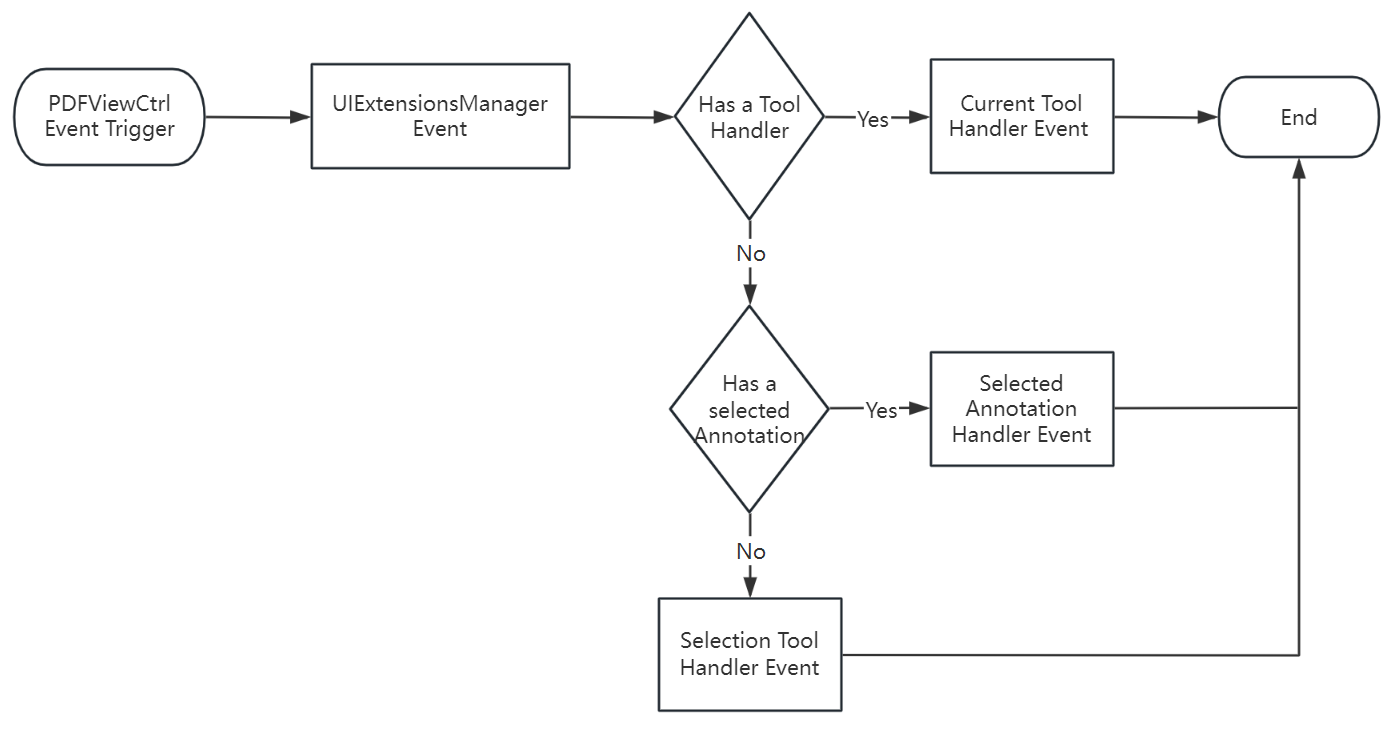
Tool Handlers and Annotation Handlers receive touch and gesture events from PDFViewCtrl. Events go to UIExtensionsManager:
- Tool Handler: If a current Tool Handler exists, the event is passed to it and processing stops.
- Annotation Handler: If an annotation is selected, the event goes to its Annotation Handler.
- Selection Tool Handler: Otherwise the Selection Tool Handler receives the event.
- Text Selection Tool: Text selection (e.g. add highlight).
- Blank Selection Tool: Blank area (e.g. add note).
NOTE
- Tool Handler and Annotation Handler do not handle the same event at once.
- Tool Handlers mainly create annotations (Link not supported), signatures, and text selection.
- Annotation Handlers mainly edit annotations and fill forms.
Event flow:
Custom Tool Example
This guide adds a custom tool on UI Extensions. Built-in tools in UI Extensions can be used as references.
Example: a region screen capture tool that selects an area on the page and saves it as an image.
INFO
The example is based on samples/viewer_ctrl_demo and implements ToolHandler.java.
Overview
- Create
ScreenCaptureToolHandlerimplementingToolHandler - Handle
onTouchEventandonDraw(selection, overlay, render and save bitmap) - Register with
UIExtensionsManager - Set as current tool handler
Step 1: Create ScreenCaptureToolHandler
Load viewer_ctrl_demo in Android Studio, create ScreenCaptureToolHandler in com.foxit.pdf.viewctrl implementing ToolHandler.
Step 2: Handle onTouchEvent and onDraw
Reference implementation:
Details
java
package com.foxit.pdf.pdfviewer;

import android.content.Context;
import android.graphics.Bitmap;
import android.graphics.Canvas;
import android.graphics.Color;
import android.graphics.Paint;
import android.graphics.PointF;
import android.graphics.Rect;
import android.graphics.RectF;
import android.os.Environment;
import android.view.MotionEvent;
import android.widget.Toast;

import com.foxit.sdk.PDFViewCtrl;
import com.foxit.sdk.PDFException;
import com.foxit.sdk.common.Progressive;
import com.foxit.sdk.common.fxcrt.Matrix2D;
import com.foxit.sdk.pdf.PDFPage;
import com.foxit.sdk.common.Renderer;
import com.foxit.uiextensions.ToolHandler;
import com.foxit.uiextensions.UIExtensionsManager;

import java.io.File;
import java.io.FileNotFoundException;
import java.io.FileOutputStream;
import java.io.IOException;

public class ScreenCaptureToolHandler implements ToolHandler {

    private Context mContext;
    private PDFViewCtrl mPdfViewCtrl;

    public ScreenCaptureToolHandler(Context context, PDFViewCtrl pdfViewCtrl) {
        mPdfViewCtrl = pdfViewCtrl;
        mContext = context;
    }

    @Override
    public String getType() {
        return "";
    }

    @Override
    public void onActivate() {

    }

    @Override
    public void onDeactivate() {

    }

    private PointF mStartPoint = new PointF(0, 0);
    private PointF mEndPoint = new PointF(0, 0);
    private PointF mDownPoint = new PointF(0, 0);
    private Rect mRect = new Rect(0, 0, 0, 0);
    private RectF mNowRect = new RectF(0, 0, 0, 0);
    private int mLastPageIndex = -1;

// Handle touch events
    @Override
    public boolean onTouchEvent(int pageIndex, MotionEvent motionEvent) {
        // Get the display-view point in device coordinates
        PointF devPt = new PointF(motionEvent.getX(), motionEvent.getY());
        PointF point = new PointF();
        // Convert display-view coordinates to page-view coordinates
        mPdfViewCtrl.convertDisplayViewPtToPageViewPt(devPt, point, pageIndex);
        float x = point.x;
        float y = point.y;

        switch (motionEvent.getAction()) {
            // Handle ACTION_DOWN: record the start point
            case MotionEvent.ACTION_DOWN:
                if (mLastPageIndex == -1 || mLastPageIndex == pageIndex) {
                    mStartPoint.x = x;
                    mStartPoint.y = y;
                    mEndPoint.x = x;
                    mEndPoint.y = y;
                    mDownPoint.set(x, y);
                    if (mLastPageIndex == -1) {
                        mLastPageIndex = pageIndex;
                    }
                }
                return true;

            // Handle ACTION_MOVE: update the selection rectangle
            case MotionEvent.ACTION_MOVE:
                if (mLastPageIndex != pageIndex)
                    break;
                if (!mDownPoint.equals(x, y)) {
                    mEndPoint.x = x;
                    mEndPoint.y = y;

                    // Calculate selection rectangle coordinates
                    getDrawRect(mStartPoint.x, mStartPoint.y, mEndPoint.x, mEndPoint.y);

                    // Convert float coordinates to integers
                    mRect.set((int) mNowRect.left, (int) mNowRect.top, (int) mNowRect.right, (int) mNowRect.bottom);

                    // Refresh PDFViewCtrl to trigger onDraw
                    mPdfViewCtrl.refresh(pageIndex, mRect);
                    mDownPoint.set(x, y);
                }
                return true;

            // Save the selected area as a bitmap
            case MotionEvent.ACTION_UP:
                if (mLastPageIndex != pageIndex)
                    break;
                if (!mStartPoint.equals(mEndPoint.x, mEndPoint.y)) {
                    renderToBmp(pageIndex, Environment.getExternalStorageDirectory().getPath() + "/FoxitSDK/ScreenCapture.bmp");
                    Toast.makeText(mContext, "The selected area was saved as a bitmap stored in the /FoxitSDK/ScreenCapture.bmp", Toast.LENGTH_LONG).show();
                }
                mDownPoint.set(0, 0);
                mLastPageIndex = -1;
                return true;
            default:
                return true;
        }
        return true;
    }

    // Save the Bitmap to the specified path
    public static void saveBitmap(Bitmap bm, String outPath) throws IOException {
        File file = new File(outPath);
        file.createNewFile();

        FileOutputStream fileout = null;
        try {
            fileout = new FileOutputStream(file);
        } catch (FileNotFoundException e) {
            e.printStackTrace();
        }

        bm.compress(Bitmap.CompressFormat.JPEG, 100, fileout);
        try {
            fileout.flush();
            fileout.close();
        } catch (IOException e) {
            e.printStackTrace();
        }
    }

    // Render the selected area to a bitmap
    private void renderToBmp(int pageIndex, String filePath) {
        try {
            PDFPage page = mPdfViewCtrl.getDoc().getPage(pageIndex);

            mPdfViewCtrl.convertPageViewRectToPdfRect(mNowRect, mNowRect, pageIndex);
            int width = (int) page.getWidth();
            int height = (int) page.getHeight();

            Bitmap bmp = Bitmap.createBitmap(width, height, Bitmap.Config.ARGB_8888);
            bmp.eraseColor(Color.WHITE);

            // Create a Renderer
            Renderer renderer = new Renderer(bmp, true);

            // Get the display matrix
            Matrix2D matrix = page.getDisplayMatrix(0, 0, width, height, 0);
            Progressive progress = renderer.startRender(page, matrix, null);
            int state = Progressive.e_ToBeContinued;
            while (state == Progressive.e_ToBeContinued) {
                state = progress.resume();
            }

            // Crop the bitmap to the selected area
            bmp = Bitmap.createBitmap(bmp, (int) mNowRect.left, (int) (height - mNowRect.top), (int) mNowRect.width(), (int) Math.abs(mNowRect.height()));
            try {
                saveBitmap(bmp, filePath);
            } catch (IOException e) {
                e.printStackTrace();
            }
        } catch (PDFException e) {
            e.printStackTrace();
        }
    }

    // Calculate normalized coordinates of the selection rectangle
    private void getDrawRect(float x1, float y1, float x2, float y2) {
        float minx = Math.min(x1, x2);
        float miny = Math.min(y1, y2);
        float maxx = Math.max(x1, x2);
        float maxy = Math.max(y1, y2);

        mNowRect.left = minx;
        mNowRect.top = miny;
        mNowRect.right = maxx;
        mNowRect.bottom = maxy;
    }

    @Override
    public boolean onLongPress(int pageIndex, MotionEvent motionEvent) {
        return false;
    }

    @Override
    public boolean onSingleTapConfirmed(int pageIndex, MotionEvent motionEvent) {
        return false;
    }

    @Override
    public boolean isContinueAddAnnot() {
        return false;
    }

    @Override
    public void setContinueAddAnnot(boolean continueAddAnnot) {

    }

    // Handle draw events: draw the selection rectangle
    @Override
    public void onDraw(int i, Canvas canvas) {
        if (((UIExtensionsManager) mPdfViewCtrl.getUIExtensionsManager()).getCurrentToolHandler() != this)
            return;
        if (mLastPageIndex != i) {
            return;
        }
        canvas.save();
        Paint mPaint = new Paint();
        mPaint.setStyle(Paint.Style.STROKE);
        mPaint.setAntiAlias(true);
        mPaint.setDither(true);
        mPaint.setColor(Color.BLUE);
        mPaint.setAlpha(200);
        mPaint.setStrokeWidth(3);
        canvas.drawRect(mNowRect, mPaint);
        canvas.restore();
    }
}
NOTE
The sample saves to /FoxitSDK/ScreenCapture.bmp and shows a Toast with the path. Ensure the device or emulator can access that directory.
Step 3: Register with UIExtensionsManager
JAVA
private ScreenCaptureToolHandler screenCapture = null;
...
screenCapture = new ScreenCaptureToolHandler(mContext, pdfViewCtrl);
uiExtensionsManager.registerToolHandler(screenCapture);
Step 4: Set as Current Tool
java
uiExtensionsManager.setCurrentToolHandler(screenCapture);Add Tool to the UI
Add a menu action item and handle clicks in MainActivity.java onActionItemClicked().
1) Add entry in Main.xml (app/src/main/res/menu)
xml
<item
   android:id="@+id/ScreenCapture"
   android:title="@string/screencapture"/>
2) Add string in strings.xml
xml
<string name="screencapture">ScreenCapture</string>3) Handle click in onActionItemClicked()
java
if (itemId == R.id.ScreenCapture) {
    if (screenCapture == null) {
        screenCapture = new ScreenCaptureToolHandler(mContext, pdfViewCtrl);
        uiExtensionsManager.registerToolHandler(screenCapture);
    }
    uiExtensionsManager.setCurrentToolHandler(screenCapture);
}
Run and Verify
- Declare and hold a
ScreenCaptureToolHandlerinstance, e.g.private ScreenCaptureToolHandler screenCapture = null; - Build and run
viewer_ctrl_demo. - Push
Sample.pdfto the path used by the sample (typically/FoxitSDK/Sample.pdf). - Grant file access when prompted (Allow).
- Open the document, tap the page to open the page menu, and tap ScreenCapture.
- Press and drag to select a rectangle. A Toast shows the save path.
- In Device Explorer, open
FoxitSDKand confirmScreenCapture.bmp.