Developer Blog
How to Convert PDF to Word, PowerPoint and Excel using Node.js
System Requirements
For system requirements, please check the latest developer guide here.
Installation
For installation, please refer to the developer guide here.
Working with Foxit PDF Conversion SDK Node.js API
It’s easy to use Foxit PDF Conversion SDK Node.js for converting PDF to Office. We can use PDF paths or PDF streams as a source of PDF input. Before using it, first look at the definition of input parameters.
PDFConversionSDK.PDF2Office.StartConvertToWordWithPath(src_pdf_path, src_pdf_password, saved_word_file_path, setting_data, convert_callback);
PDFConversionSDK.PDF2Office.StartConvertToPPTWithPath(src_pdf_path, src_pdf_password, saved_ppt_file_path, setting_data, convert_callback);
PDFConversionSDK.PDF2Office.StartConvertToExcelWithPath(src_pdf_path, src_pdf_password, saved_excel_file_path, setting_data, convert_callback);
PDFConversionSDK.PDF2Office.StartConvertToWordWithStream(src_pdf_reader,src_pdf_password, saved_word_file_stream, setting_data, convert_callback);
PDFConversionSDK.PDF2Office.StartConvertToPPTWithStream(src_pdf_reader,src_pdf_password, saved_ppt_file_stream, setting_data, convert_callback);
PDFConversionSDK.PDF2Office.StartConvertToExcelWithStream(src_pdf_reader,src_pdf_password, saved_excel_file_stream, setting_data, convert_callback);
src_pdf_path | Path of a PDF file. This should not be an empty string. |
src_pdf_password | Password for the input PDF file. If no password is needed for the file, please pass an empty string. |
saved_word_file_path | Path of the saved Word format file as conversion result. This should not be an empty string. If the suffix name of the saved Word format file is not “docx”, a new suffix named “docx” will be added to the original file name. |
saved_ppt_file_path | Path of the saved PowerPoint format file as conversion result. This should not be an empty string. If the suffix name of the saved PowerPoint format file is not “pptx”, a new suffix named “pptx” will be added to the original file name. |
saved_excle_file_path | Path of the saved Excel format file as conversion result. This should not be an empty string. If the suffix name of the saved Excel format file is not “xlsx”, a new suffix named “xlsx” will be added to the original file name. |
src_pdf_reader | A ReaderCallback object which is implemented by user to load a PDF document. It should not be NULL. |
saved_word_file_stream | A StreamCallback object which is implemented by user to read the contents of the converted Excel format file. It should not be NULL. |
saved_ppt_file_stream | A StreamCallback object which is implemented by user to read the contents of the converted Excel format file. It should not be NULL. |
saved_excel_file_stream | A StreamCallback object which is implemented by user to read the contents of the converted Excel format file. It should not be NULL. |
setting_data | Setting data used for converting. |
convert_callback | A PDFConversionSDK.ConvertCallback object which is implemented by user to pause and notify the conversion progress during the converting process. This can be NULL which means not to pause and notify the conversion progress. If this is not NULL, it should be a valid PDFConversionSDK.ConvertCallback object implemented by user. Default value: NULL. |
How to import the Foxit PDF Conversion SDK node module
var {
  ErrorCode,
  State,
  Library,
  PDF2OfficeSettingData,
  ConvertCallback,
  PDF2Office,
  Progressive,
  ReaderCallback,
  StreamCallback } = require("@foxitsoftware/foxit-pdf-conversion-sdk-node");
Specify the PDF2OfficeSettingData for conversion
Before conversion, you need to set the metrics data file path and whether or not you want to enable machine learning based recognition. The metrics data files are offered in the “res/metrics_data” folder of the Foxit PDF Conversion SDK package. You can enable machine learning-based recognition functionality to enhance recognition results in PDF documents. This recognition functionality will be executed on the server side and return the relevant results when it has completed. Machine learning based recognition is disabled in the following code.
var setting_data = new PDF2OfficeSettingData('../../res/metrics_data', false);Specify PDFConversionSDK.ConvertCallback
class CustomConvertCallback extends ConvertCallback {
  NeedToPause() {
    return true;
  }

  ProgressNotify(converted_count, total_count) {
  }
}

var custom_callback = new CustomConvertCallback();
Specify PDFConversionSDK.ReaderCallback
class CustomReaderCallback extends ReaderCallback {
  LoadFile(file_path) {
    this.file_path = file_path;
    this.fd = fs.openSync(file_path, 'r');
  }

  GetSize() {
    var states = fs.statSync(this.file_path);
    return states.size;
  }

  ReadBlock(offset, size) {
    var buf = Buffer.alloc(size);
    var read_size = fs.readSync(this.fd, buf, 0, size, offset);
    if (read_size == 0) {
      return "";
    }
    return buf.toString('binary');
  }
}
Specify PDFConversionSDK.StreamCallback
class CustomStreamCallback extends StreamCallback {
  LoadFile(file_path) {
    this.file_path = file_path;
    this.fd = fs.openSync(file_path, 'w+')
    this.curpos = 0;
    this.offset = 0;
  }

  Retain() {
    return this;
  }

  Release() {
    fs.closeSync(this.fd);
  }

  GetSize() {
    var states = fs.statSync(this.file_path);
    return states.size;
  }

  IsEOF() {
    var states = fs.statSync(this.file_path);
    return this.curpos - this.offset >= states.size;
  }

  GetPosition() {
    return this.curpos;
  }

  ReadBlock0(offset, size) {
    var buf = Buffer.alloc(size);
    this.offset = offset;
    var read_size = fs.readSync(this.fd, buf, 0, size, offset);
    if (read_size == 0) {
      return false;
    }
    this.curpos = offset + size;
    return buf.toString('binary');
  }

  ReadBlock1(buffer, size) {
    var states = fs.statSync(this.file_path);
    return ReadBlock0(buffer, states.size(), size);
  }

  WriteBlock(buffer, offset, size) {
    this.offset = offset;
    var buf = Buffer.from(buffer, 'binary');
    var write_size = fs.writeSync(this.fd, buf, 0, size, offset);
    if (write_size == size) {
      this.curpos = offset + size;
      return true;
    }
    return false;
  }

  Flush(user_data) {
  }
}
Call conversion
Call the PDF2Office.StartConvertToWordWithPath function to begin converting PDF to Word. The interface call methods for PPT and Excel are similar.
// convert pdf to word with path
try {
  var progressive = PDF2Office.StartConvertToWordWithPath(src_pdf_path, "", saved_word_file_path, setting_data, custom_callback);
  if (progressive.GetRateOfProgress() != 100) {
    var state = State.e_ToBeContinued;
    while (State.e_ToBeContinued == state) {
      state = progressive.Continue();
    }
  }
  console.log("Convert PDF file to Word format file with path.");
} catch (e) {
  console.log(e.message);
}

// convert pdf to word with stream
try {
  var custom_readercallback_word = new CustomReaderCallback();
  var custom_streamcallback_word = new CustomStreamCallback();
  custom_readercallback_word.LoadFile(src_pdf_path);
  custom_streamcallback_word.LoadFile(saved_word_file_path);
  var progressive = PDF2Office.StartConvertToWordWithStream(custom_readercallback_word, "", custom_streamcallback_word, setting_data, custom_callback);
  if (progressive.GetRateOfProgress() != 100) {
    var state = State.e_ToBeContinued;
    while (State.e_ToBeContinued == state) {
      state = progressive.Continue();
    }
  }
  console.log("Convert PDF file to Word format file with stream.");
  delete custom_readercallback_word;
  delete custom_streamcallback_word;
} catch (e) {
  console.log(e.message);
}
How to run the conversion in the Foxit PDF SDK Web demo
The Foxit PDF SDK Web demo is an online demo application based on Foxit PDF SDK that helps users learn and familiarize themselves with the various features and capabilities of Foxit PDF SDK. Foxit pdf-sdk-web-demo has added a demo of the pdf2office function by using Foxit PDF Conversion SDK.
How to set up
Download the foxit-pdf-sdk-web-demo from https://github.com/foxitsoftware/foxit-pdf-sdk-web-demo.git
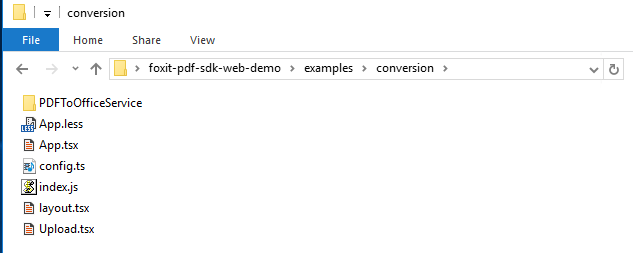
The Foxit PDF Conversion SDK demo is located in the foxit-pdf-sdk-web-demo/examples/conversion directory. PDFToOfficeService is a service for Node.js used for PDF to Office with Foxit PDF Conversion SDK.
How to run
Install foxit-pdf-sdk-web-demo dependencies
|
Install conversion server dependencies
|
Start conversion server
|
Start conversion client
Change the serverUrlBase value in foxit pdf sdk web demo/examples/version/config.ts,export let serverUrlBase= `http://localhost:19113`.
|
How to use it
Open http://localhost:8083/#/conversion in your browser to access the demo.
Click on the “Upload” button to upload a PDF file.
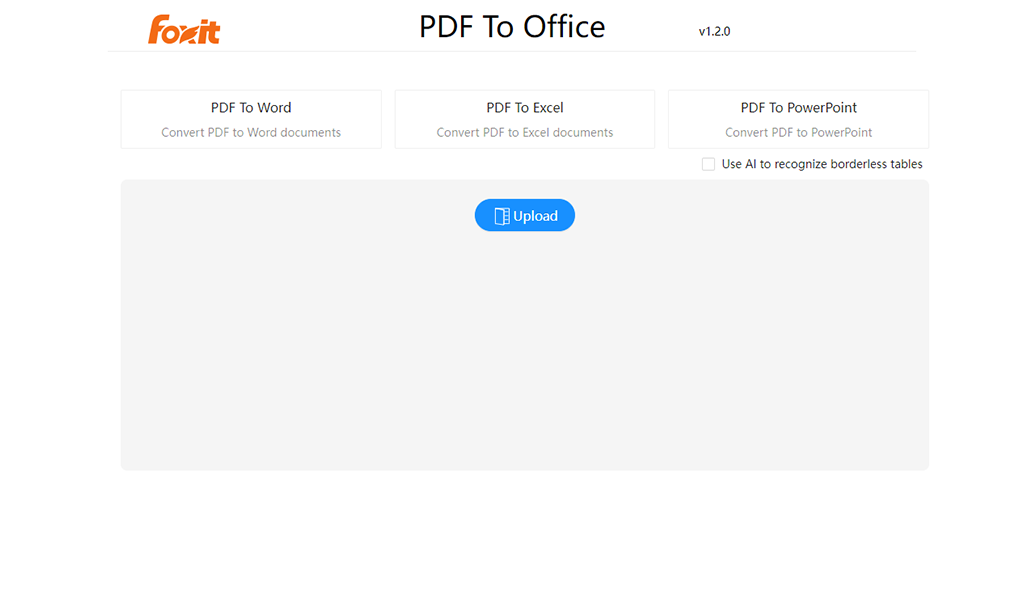
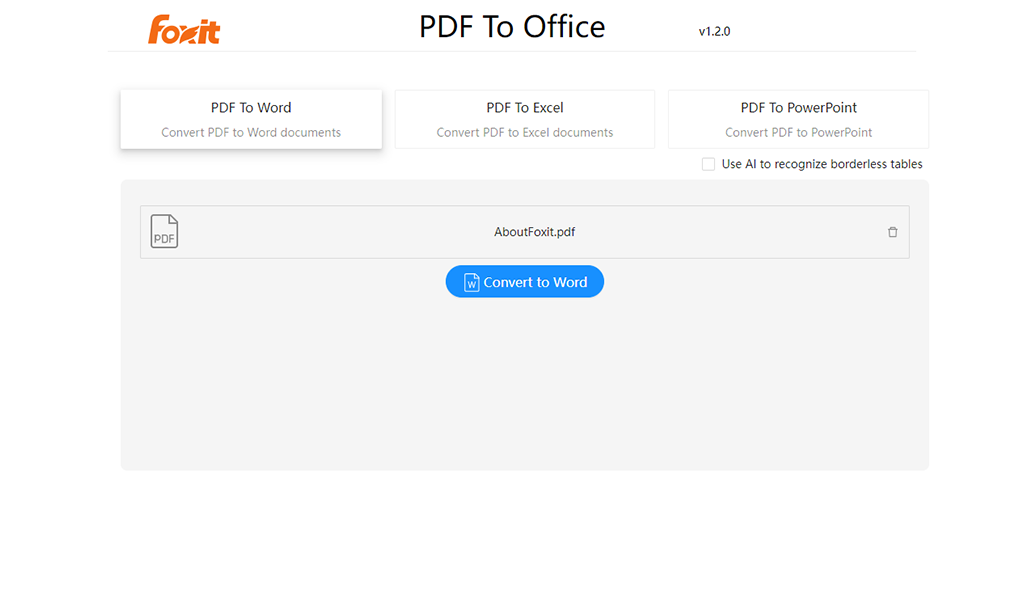
3. Once the PDF has been successfully uploaded, select one of the conversion options to convert the PDF to the desired office document format.
4. If your PDF file contains tables, it is recommended that you select the option to “Use AI to recognize borderless tables” for better table extraction.
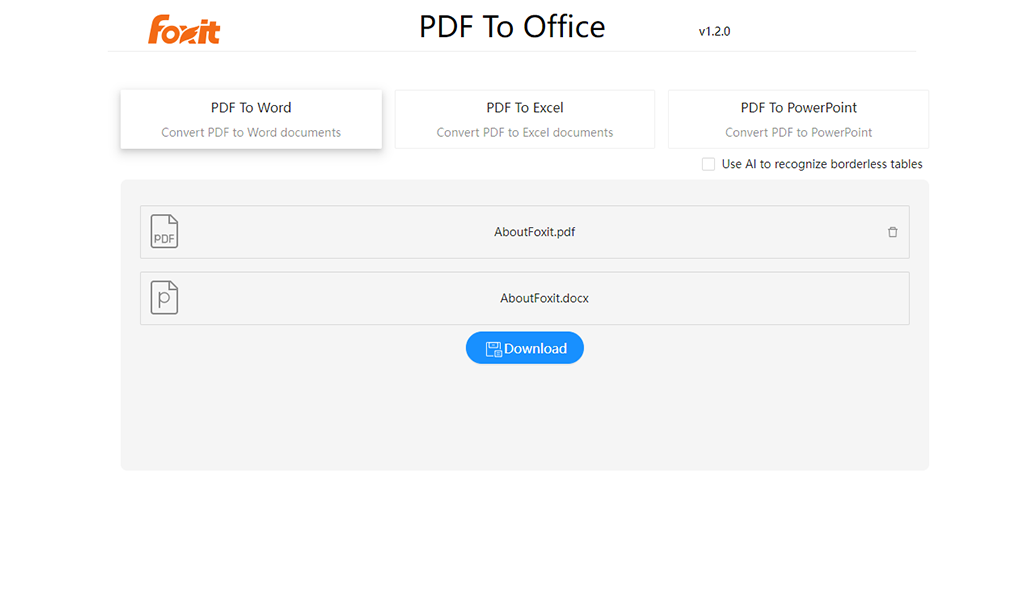
5. Once the conversion is complete, click on the “Download” button to download the converted file.