Developer Blog
How to customize UIExtensions with JSON in Foxit PDF SDK for Android
Using a configuration file, developers can easily select preferred features, set rights management and the properties of UI elements without needing to write any additional code or redesign the app’s UI.
Introduction to JSON file
The configuration file can be provided as a JSON file or implemented directly in code. We recommend you use the JSON format which is more intuitive and clearer to view to configure your project.
You can refer to the JSON file found in “samples\complete_pdf_viewer\app\src\main\res\raw” folder of Foxit PDF SDK for Android package. It looks like as follows:
{ "modules": { "readingbookmark": true, "outline": true,// "annotations":true, "annotations": { "highlight": true, "underline": true, "squiggly": true, "strikeout": true, "insert": true, "replace": true, "line": true, "rectangle": true, "oval": true, "arrow": true, "pencil": true, "eraser": true, "typewriter": true, "textbox": true, "callout": true, "note": true, "stamp": true, "polygon": true, "cloud": true, "polyline": true, "distance": true, "image": true, "audio": true, "video": true }, "thumbnail": true, "attachment": true, "signature": true, "search": true, "navigation": true, "form": true, "selection": true, "encryption": true }, "permissions": { "runJavaScript": true, "copyText": true, "disableLink": false }, "uiSettings": { "displayMode": "Single", "zoomMode": "FitWidth", "colorMode": "Normal", "mapForegroundColor": "#5d5b71", "mapBackgroundColor": "#00001b", "disableFormNavigationBar": false, "highlightForm": true, "highlightFormColor": "#200066cc", "highlightLink": true, "highlightLinkColor": "#16007fff", "fullscreen": false, "annotations": { "continuouslyAdd": false, "highlight": { "color": "#ffff00", "opacity": 1.0 }, "underline": { "color": "#66cc33", "opacity": 1.0 }, "squiggly": { "color": "#ff6633", "opacity": 1.0 }, "strikeout": { "color": "#ff0000", "opacity": 1.0 }, "insert": { "color": "#993399", "opacity": 1.0 }, "replace": { "color": "#0000ff", "opacity": 1.0 }, "line": { "color": "#ff0000", "opacity": 1.0, "thickness": 2 }, "rectangle": { "color": "#ff0000", "opacity": 1.0, "thickness": 2 }, "oval": { "color": "#ff0000", "opacity": 1.0, "thickness": 2 }, "arrow": { "color": "#ff0000", "opacity": 1.0, "thickness": 2 }, "pencil": { "color": "#ff0000", "opacity": 1.0, "thickness": 2 }, "polygon": { "color": "#ff0000", "opacity": 1.0, "thickness": 2 }, "cloud": { "color": "#ff0000", "opacity": 1.0, "thickness": 2 }, "polyline": { "color": "#ff0000", "opacity": 1.0, "thickness": 2 }, "typewriter": { "textColor": "#0000ff", "opacity": 1.0, "textFace": "Courier", "textSize": 18 }, "textbox": { "color": "#ff0000", "textColor": "#0000ff", "opacity": 1.0, "textFace": "Courier", "textSize": 18 }, "callout": { "color": "#ff0000", "textColor": "#0000ff", "opacity": 1.0, "textFace": "Courier", "textSize": 18 }, "note": { "color": "#ff6633", "opacity": 1.0, "icon": "Comment" }, "attachment": { "color": "#ff6633", "opacity": 1.0, "icon": "PushPin" }, "image": { "rotation": 0, "opacity": 1.0 }, "distance": { "color": "#ff0000", "opacity": 1.0, "thickness": 2, "scaleFromUnit": "inch", "scaleToUnit": "inch", "scaleFromValue": 1, "scaleToValue": 1 } }, "signature": { "color": "#000000", "thickness": 4 } }}Note:
The values in the above JSON file are the default settings for the configuration items. If some configuration items are not in the JSON file, the default settings will be used. For example, if you comment out “”highlight”: true,”, it is still enabled.
Only the attachment annotation in the Annotation setting bar (See Error! Reference source not found., to find the Annotation setting bar, just click Comment at the bottom bar, and then click ) is not controlled by the subitems in “annotations”. “”attachment”: true,” controls the attachments panel and attachment annotation. If you set it to “false”, both of them will be disabled. If you want to hide “Comment” in the bottom bar, you should set both “annotations” and “attachment” to “false”.
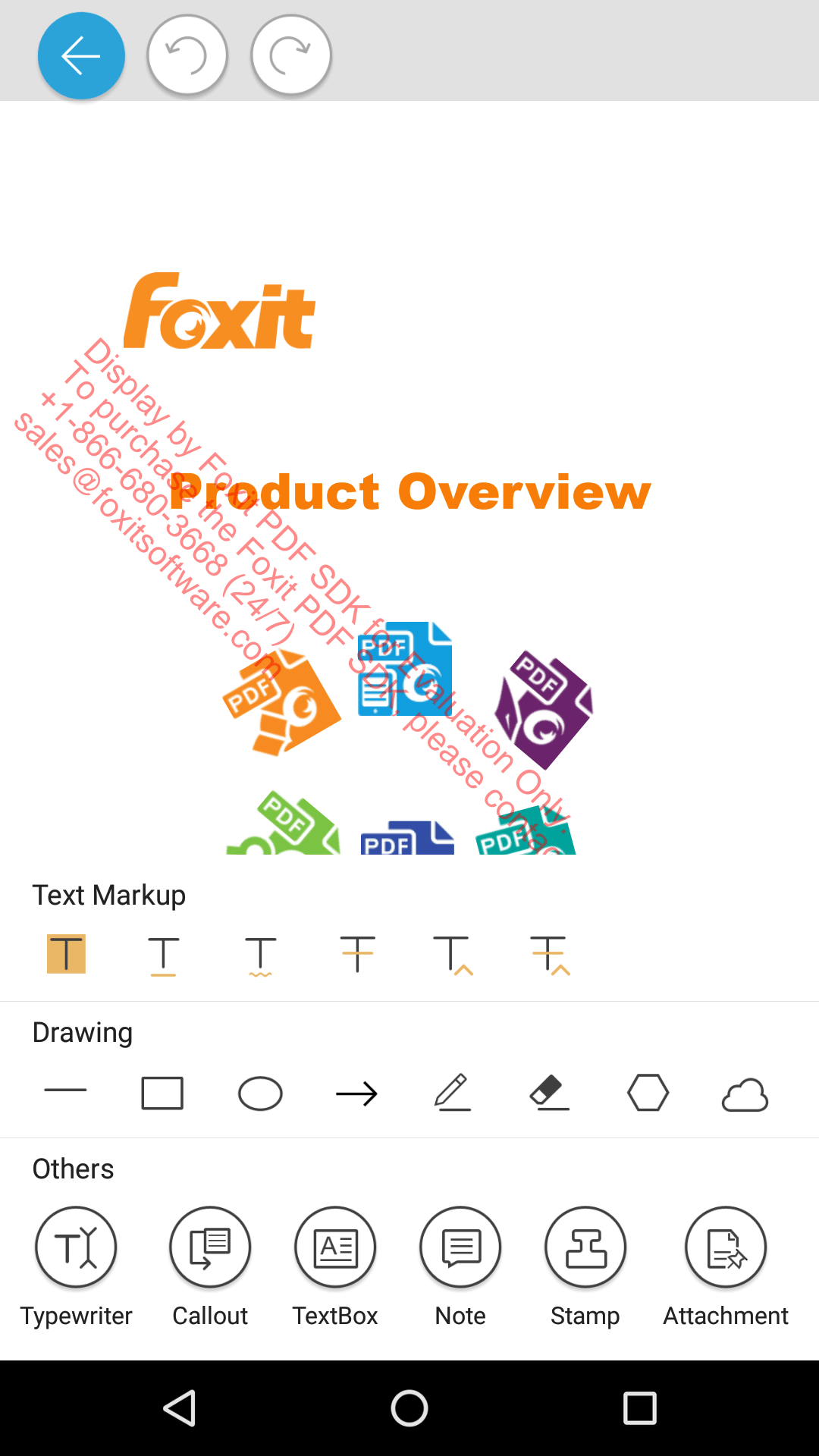
Figure 4-1
The above picture does not display all of the annotation tools. You can swipe left on the setting bar to see the other annotation tools.
Configuration Items Description
The JSON configuration file includes three parts: feature modules, rights management, and UI settings (for example, UI elements properties). This section will set forth the configuration items in detail.
Configure feature module
Note: The value type of the feature module items is bool, where “true” means that the feature module will be enabled, and “false” means that the feature module will be disabled. The default value is “true”.
[table id=38 /]
Configure rights management
Note: The value type of the configuration items is bool, where “true” means that the permission will be enabled, and “false” means that the permission will be disabled. The default value of runJavaScript and copyText is “true”, and the default value of disableLink is “false”.
[table id=39 /]
Configure UI setting
UI Items | Description/ Property Items | Value Type | Available Value/Note | Default value | Note | |
displayMode | Page display mode | String | Single/ | Single | For dynamic XFA files, it doesn’t support Reflow mode. | |
zoomMode | Page zoom mode | String | FitWidth/FitPage | FitWidth | ||
colorMode | Page color display mode | String | Normal/Night/Map | Normal | “Night” is a special “Map” mode. | |
mapForegroundColor | Foreground color of page display | RGB | — | #5d5b71 | It is vaild only when “colorMode” is set to “Map”. | |
mapBackgroundColor | Background color of page dispay | RGB | — | #00001b | It is vaild only when “colorMode” is set to “Map”. | |
disableFormNavigationBar | Whether to disable the supplementary navigation bar of the form | Bool | true/false | false | ||
highlightForm | Whether to highlight form field | Bool | true/false | true | ||
highlightFormColor | The highlight color of forms | ARGB | #200066cc | It include alpha channel, and it is invalid for dynamic xfa document. | ||
highlightLink | Whether to highlight hyperlink | Bool | true/false | true | ||
highlightLinkColor | The highlight color of links | ARGB | #16007fff | It include alpha channel. | ||
fullscreen | Whether to display in full screen mode | Bool | true/false | false | It will be in full screen mode immediately when opening a document if “fullscreen” is set to “true”. | |
annotations | continuouslyAdd | Bool | true/false | false | Whether to add annotation continuously | |
highlight | color | RGB | #ffff00 | |||
opacity | numeric | [0.0-1.0] | 1.0 | |||
underline | color | RGB | #66cc33 | |||
opacity | numeric | [0.0-1.0] | 1.0 | |||
squiggly | color | RGB | #ff6633 | |||
opacity | numeric | [0.0-1.0] | 1.0 | |||
strikeout | color | RGB | #ff0000 | |||
opacity | numeric | [0.0-1.0] | 1.0 | |||
insert | color | RGB | #993399 | |||
opacity | numeric | [0.0-1.0] | 1.0 | |||
replace | color | RGB | #0000ff | |||
opacity | numeric | [0.0-1.0] | 1.0 | |||
line | color | RGB | #ff0000 | |||
opacity | numeric | [0.0-1.0] | 1.0 | |||
thickness | numeric | [1-12] | 2 | |||
rectangle | color | RGB | #ff0000 | |||
opacity | numeric | [0.0-1.0] | 1.0 | |||
thickness | numeric | [1-12] | 2 | |||
oval | color | RGB | #ff0000 | |||
opacity | numeric | [0.0-1.0] | 1.0 | |||
thickness | numeric | [1-12] | 2 | |||
arrow | color | RGB | #ff0000 | |||
opacity | numeric | [0.0-1.0] | 1.0 | |||
thickness | numeric | [1-12] | 2 | |||
pencil | color | RGB | #ff0000 | |||
opacity | numeric | [0.0-1.0] | 1.0 | |||
thickness | numeric | [1-12] | 2 | |||
polygon | color | RGB | #ff0000 | |||
opacity | numeric | [0.0-1.0] | 1.0 | |||
thickness | numeric | [1-12] | 2 | |||
cloud | color | RGB | #ff0000 | |||
opacity | numeric | [0.0-1.0] | 1.0 | |||
thickness | numeric | [1-12] | 2 | |||
polyline | color | RGB | #ff0000 | |||
opacity | numeric | [0.0-1.0] | 1.0 | |||
thickness | numeric | [1-12] | 2 | |||
typewriter | textColor | RGB | #0000ff | |||
opacity | numeric | [0.0-1.0] | 1.0 | |||
textFace | String | Courier/ | Courier | Text font name. | ||
textSize | Integer | >=1 | 18 | |||
textbox | color | RGB | #ff0000 | |||
textColor | RGB | #0000ff | ||||
opacity | numeric | [0.0-1.0] | 1.0 | |||
textFace | String | Courier/ | Courier | Text font name. | ||
textSize | Integer | >=1 | 18 | |||
callout | color | RGB | #ff0000 | |||
textColor | RGB | #0000ff | ||||
opacity | numeric | [0.0-1.0] | 1.0 | |||
textFace | String | Courier/ | Courier | Text font name. | ||
textSize | Integer | >=1 | 18 | |||
note | color | RGB | #ff6633 | |||
opacity | numeric | [0.0-1.0] | 1.0 | |||
icon | String | Comment/ | Comment | If set to an invalid value, the default value will be used. | ||
attachment | color | RGB | #ff6633 | |||
opacity | numeric | [0.0-1.0] | 1.0 | |||
icon | String | Graph/ | PushPin | If set to an invalid value, the default value will be used. | ||
image | rotation | numeric | 0/90/180/270 | 0 | ||
opacity | numeric | [0.0-1.0] | 1.0 | |||
distance | color | RGB | ff0000 | |||
opacity | numeric | [0.0-1.0] | 1.0 | |||
thickness | numeric | [1-12] | 2 | |||
scaleFromUnit | String | pt/m/cm/mm/inch/p/ft/yd | inch | The original unit of the scale | ||
scaleToUnit | String | pt/m/cm/mm/inch/p/ft/yd | inch | The target unit of the scale | ||
scaleFromValue | numeric | 1 | The original value of the scale | |||
scaleToValue | numeric | 1 | The target value of the scale | |||
signature | color | RGB | #000000 | |||
thickness | numeric | [1-12] | 4 |
Instantiate a UIExtensionsManager object with the configuration file
In this section, we will provide another method to initialize UIExtensionsManager that uses the configuration file, so that developers can easily customize the UI as desired.
Please refer to the following code to instantiate a UIExtensionsManager object with the configuration file.
Note: Here, we assume that you have already put a JSON file named “uiextensions_config.json” to “PDFReader\app\src\main\res\raw” (note that you need to create the “raw” folder by yourself).
In “MainActivity.java”:
private PDFViewCtrl pdfViewCtrl = null;private UIExtensionsManager uiExtensionsManager = null;// Initialize a PDFViewCtrl object.pdfViewCtrl = new PDFViewCtrl(this);

// Get the config file, and set it to UIExtensionsManager.InputStream stream = this.getApplicationContext().getResources().openRawResource(R.raw.uiextensions_config);UIExtensionsManager.Config config = new UIExtensionsManager.Config(stream);

// Initialize a UIExtensionManager object with Configuration file, and set it to PDFViewCtrl.uiExtensionsManager = new UIExtensionsManager(this.getApplicationContext(), pdfViewCtrl,config);pdfViewCtrl.setUIExtensionsManager(uiExtensionsManager);uiExtensionsManager.setAttachedActivity(this);uiExtensionsManager.onCreate(this, pdfViewCtrl, savedInstanceState);
Note: Here, we use a configuration file to initialize the UIExtensionsManager.
Examples for customizing UI through a configuration file
In this section, we will show you how to customize feature modules, rights management and UI settings (for example, UI elements properties) in your project. You will find it is extremely easy! You only need to modify the configuration file. Below you can see some examples of how to do it.
Note: For your convenience, we will try it in the “complete_pdf_viewer” demo found in the “samples” folder.
Load the “complete_pdf_viewer” demo in Android Studio. Find the configuration file “uiextensions_config.json” under “complete_pdf_viewer\app\src\main\res\raw”.
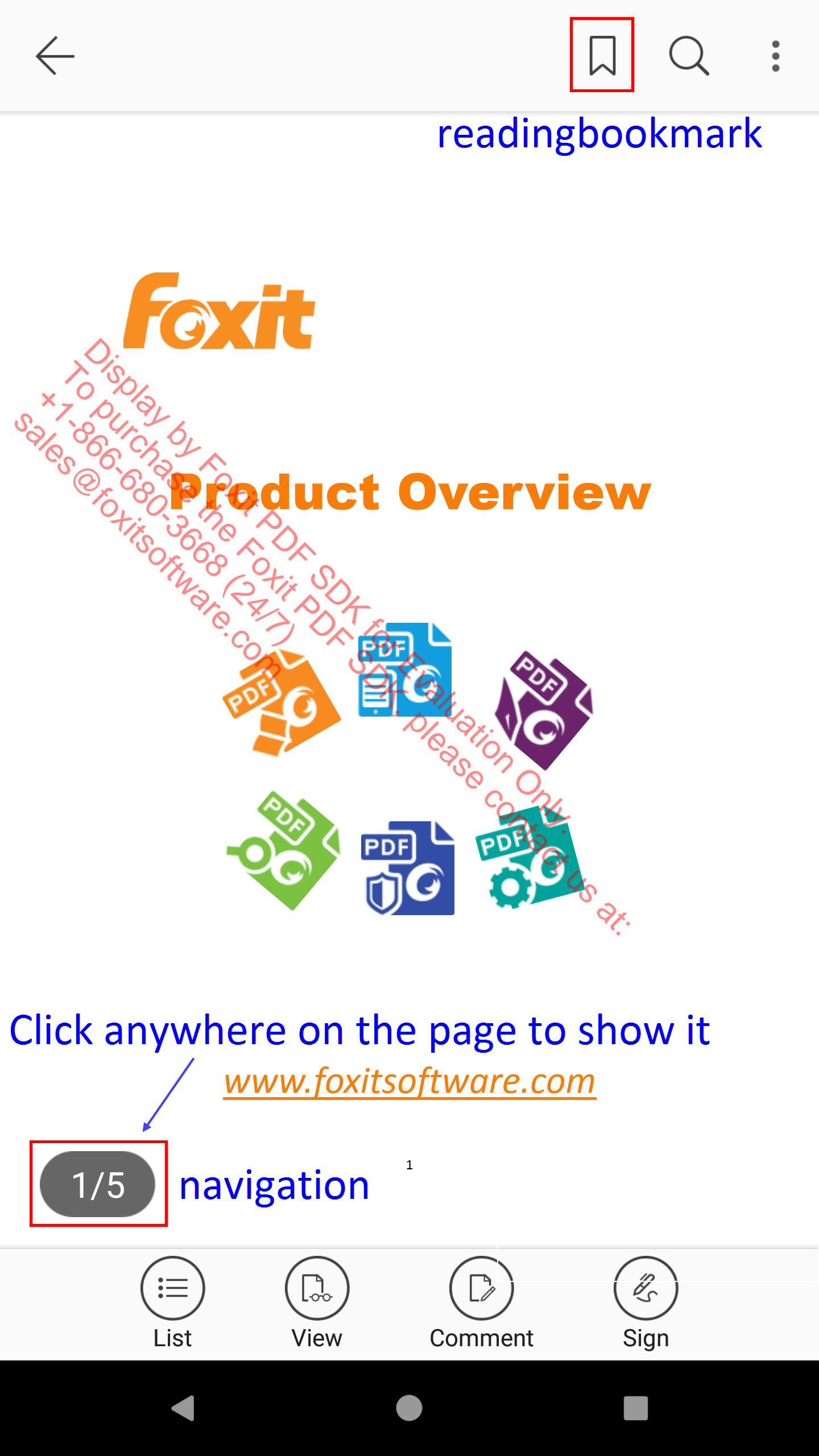
Example 1: Disable “readingbookmark” and “navigation” feature modules.
In the JSON file, set the values of “readingbookmark” and “navigation” to “false” as follows:
"readingbookmark": false,"navigation": false,Then, rebuild and run the demo to see the result. Following lists the comparison diagrams:
Before:
After:
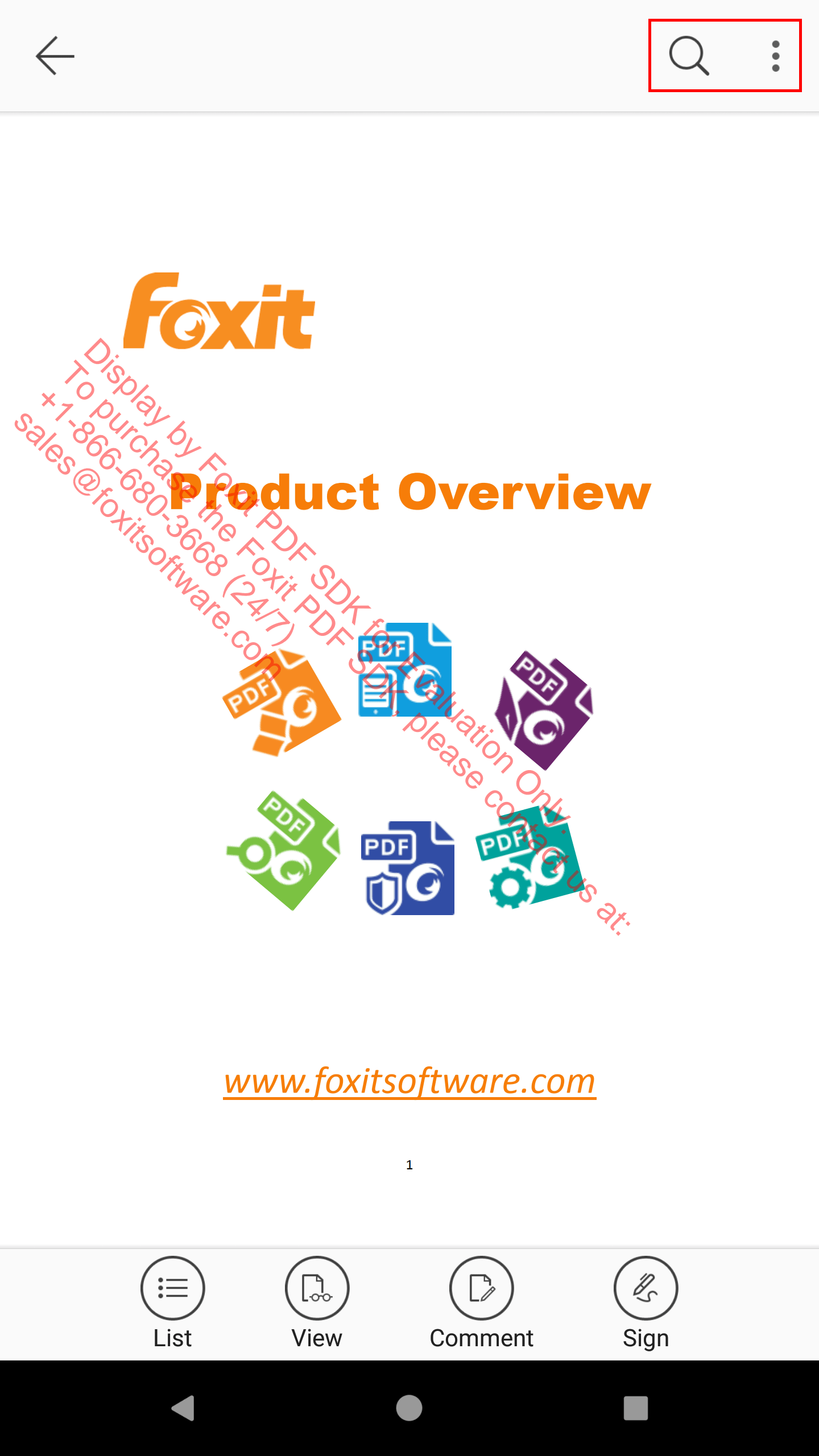
The “readingbookmark” and “navigation” feature modules are removed.
Example 2: Disable hyperlinks.
In the JSON file, set the value of “disableLink” to “true” as follows:
"permissions": { "runJavaScript": true, "copyText": true, "disableLink": true},Then, rebuild and run the demo to see the result, and you will find that there is no any response when clicking the hyperlinks.
Example 3: Set the highlight color from yellow to red.
In the JSON file, set the color property of “highlight” to “#ff0000” as follows:
"highlight": { "color": "#ff0000", "opacity": 1.0 },Then, rebuild and run the demo to see the result. Following lists the comparison diagrams.
Before:
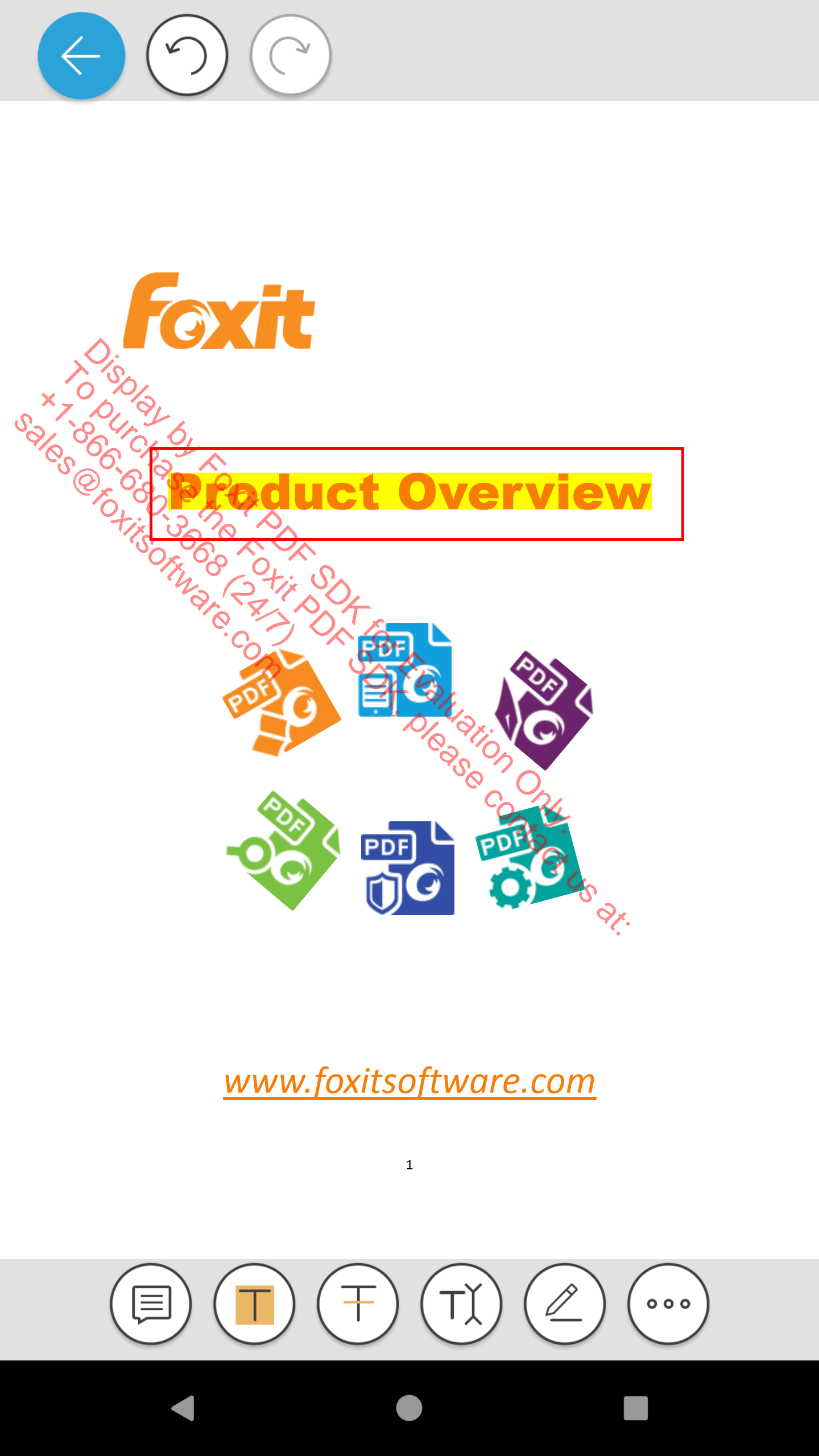
After:
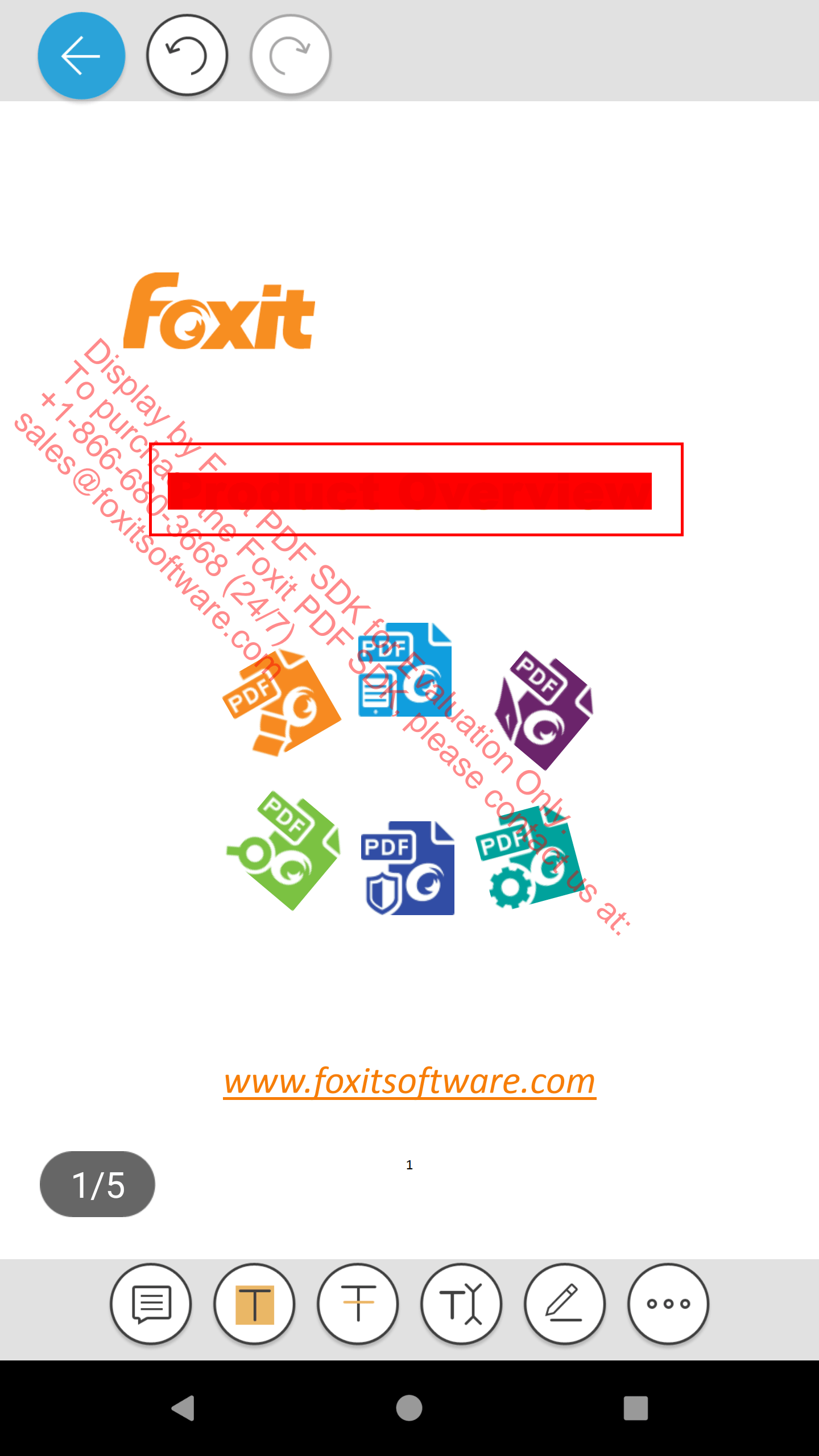
The highlight color has been changed to red.