Developer Blog
How to Implement Foxit PDF SDK for iOS using Cordova Plugin
When it comes to developing cross-platform mobile applications, Apache Cordova is an ideal open-source framework. The ‘cordova-plugin-foxitpdf’ is one of the mobile framework plugins provided by us to use with Foxit PDF SDK for iOS. The plugin enables you to achieve powerful PDF viewing features using the Cordova framework. Through this plugin, you can preview any PDF file including PDF 2.0 compliant files, XFA documents, and RMS protected documents, as well as commenting and editing PDF documents.
This section will help you get started with Foxit PDF SDK for iOS and the Cordova plugin.
System Requirements
NPM
Cordova 8.1.2
iOS 9 or higher
Xcode 9 or higher
Foxit PDF SDK For iOS
Note: The version of Foxit PDF SDK for iOS should match the version of the ‘cordova-plugin-foxitpdf‘ plugin. You can specify the plugin version when installing it, if not, the latest version will be installed.
Install Cordova Command-line Tool
Please refer to the website https://cordova.apache.org/#getstarted to install the Cordova command-line tool.
Download Node.js and install it
Open a terminal and type
sudo npm install -g cordovaBuild a Cordova project using Foxit PDF SDK for iOS
Create a Cordova project
Open a terminal, navigate to the directory where you wish to create your project and type:
cordova createFor example, type the command below to create a cordova project:
cordova create test_cordova com.app testCordovaAdd Platforms
After creating a Cordova project, navigate to the project directory (cd test_cordova), and type the command below to add iOS platform to build your app.
cd test_cordovacordova platform add iosNote: All the subsequent commands are executed in the project directory.
Install Plugin
Install ‘cordova-plugin-foxitpdf‘ plugin
Download the plugin from npm and install it inside the project folder:
// Install a specific plugin version, for example the 6.2.1 version:cordova plugin add [email protected]

// Install the latest plugin version (just not specify the version):cordova plugin add cordova-plugin-foxitpdf
Or you can install via repo url directly (generally, in this way, the latest plugin version will be installed):
cordova plugin add https://github.com/foxitsoftware/cordova-plugin-foxitpdf.gitInstall ‘cordova-plugin-file’ plugin
Due to the sandbox mechanism of Apple, the file paths are limited to the app’s sandbox. We need the ‘cordova-plugin-file’ plugin to do a file path conversion to obtain the absolute path of a file. Please notice the directory permission when converting. To install ‘cordova-plugin-file’ plugin, type the following command:
cordova plugin add cordova-plugin-fileIntegrate Foxit PDF SDK for iOS
Download Foxit PDF SDK for iOS package and extract it, then follow the steps below:
1) Copy “libs” folder from the extracted package to “test_cordova/platforms/ios” directory.
2) Replace the license string (‘sn‘ and ‘key’) in “FoxitPdf.m” class (under “test_cordova/plugins/cordova-plugin-foxitpdf/src/ios“). The license files “rdk_sn.txt” and “rdk_key.txt” can be found in the “libs” folder of Foxit PDF SDK for iOS package.
3) Double-click “testCordova.xcodeproj” found in the “test_cordova/platforms/ios” folder to open the Cordova project in Xcode.
4) Add the dynamic framework FoxitRDK.framework and uiextensionsDynamic.framework in the “test_cordova\platforms\ios\libs” folder to Xcode’s Embedded Binaries.
Left-click the project, find TARGETS -> General -> Embedded Binaries, press on the + button and choose the two frameworks to add (See Figure 1-1).
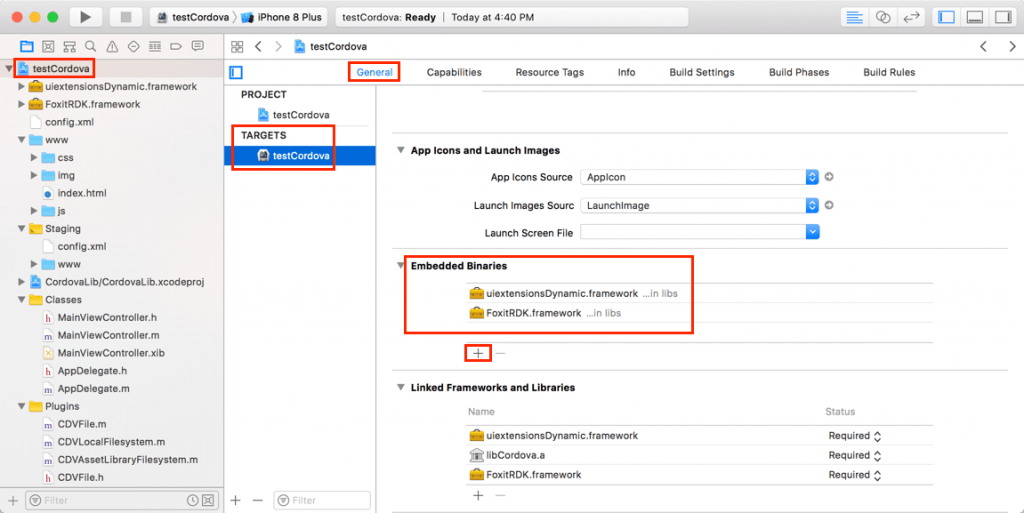
Figure 1-1
5) Add “WebKit.framework” to Xcode’s Linked Frameworks and Libraries.
Left-click the project, find TARGETS -> General -> Linked Frameworks and Libraries, press on the + button and type “web” into the search box to find “WebKit.framework” faster (See Figure 1-2), select it and click Add.
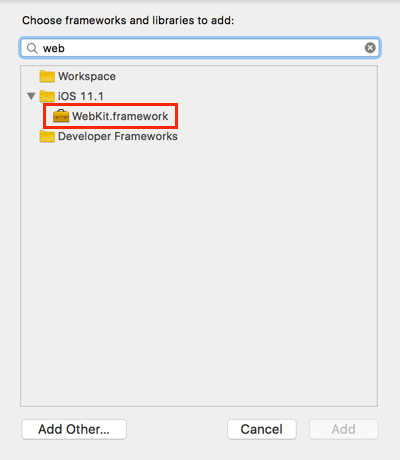
Figure 1-2
6) Then, your Linked Frameworks and Libraries will appear as in Figure 1-3.
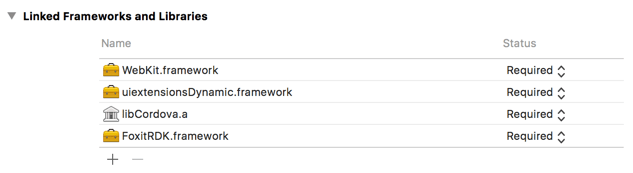
Figure 1-3
7) Add a PDF file to the project which will be used as the test file.Next, drag the desired PDF file to the testCordova project, or add the PDF file to Xcode’s Copy Bundle Resources directly (Left-click the project, find TARGETS -> Build Phases -> Copy Bundle Resources, press on the + button, and choose the PDF file to add). For example, add the “complete_pdf_viewer_guide_ios.pdf” in the “samples/test_files” folder of Foxit PDF SDK for iOS package (See Figure 1-4).
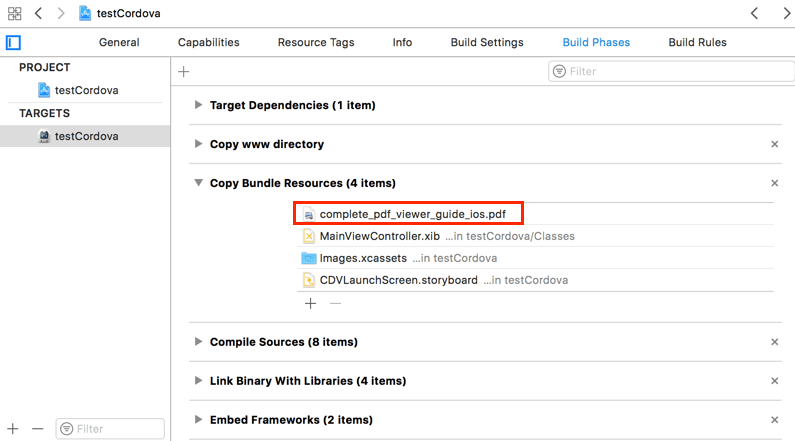
Figure 1-4
8) Add the following code (See Figure 1-5) to “test_cordova/www/js/index.js” file to open a PDF document.
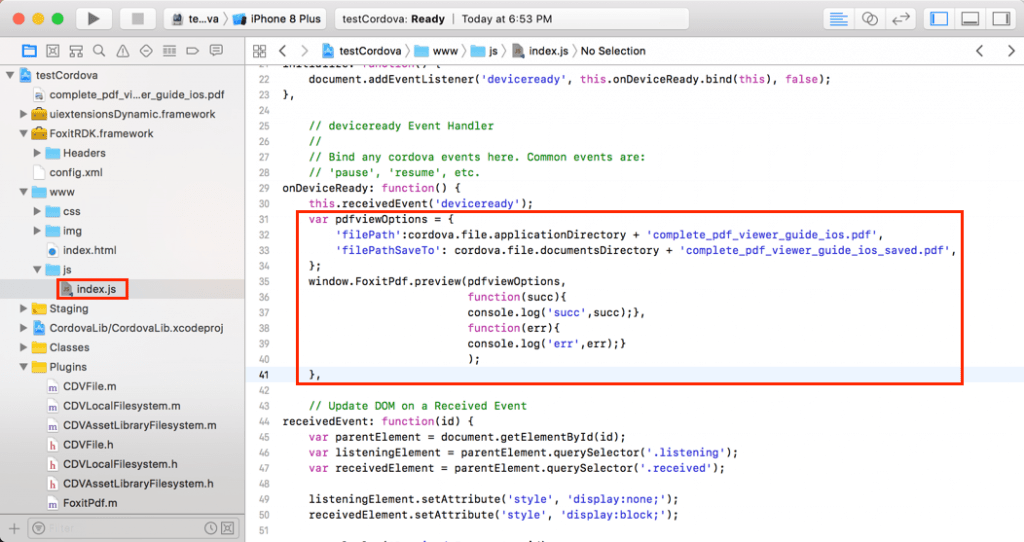
Figure 1-5
var pdfviewOptions = {        'filePath':cordova.file.applicationDirectory + 'complete_pdf_viewer_guide_ios.pdf',        'filePathSaveTo': cordova.file.documentsDirectory + 'complete_pdf_viewer_guide_ios_saved.pdf',    };
    window.FoxitPdf.preview(pdfviewOptions,                            function(succ){                            console.log('succ',succ);},                            function(err){                            console.log('err',err);});
Deploy the files in “test_cordova/www” to the “www” folder of the platform (test_cordova/platforms/ios/www). In a terminal, go to the project directory, type the command below:
cordova prepare iosRun the project
To run the project, you can use the following command or run it directly.
cordova run ios // for devicecordova emulate ios // for emulatorcordova emulate ios --target iPhone-8-Plus // for a specific emulatorNote: If your Xcode version is 10 or higher, please specify —buildFlag=”-UseModernBuildSystem=0″ when running on command-line. For example cordova run ios —buildFlag=’-UseModernBuildSystem=0′. For more information, please visit at https://github.com/apache/cordova-ios/issues/407.
After running the project successfully, the “complete_pdf_viewer_guide_ios.pdf” document will be displayed as shown in Figure 1-6:
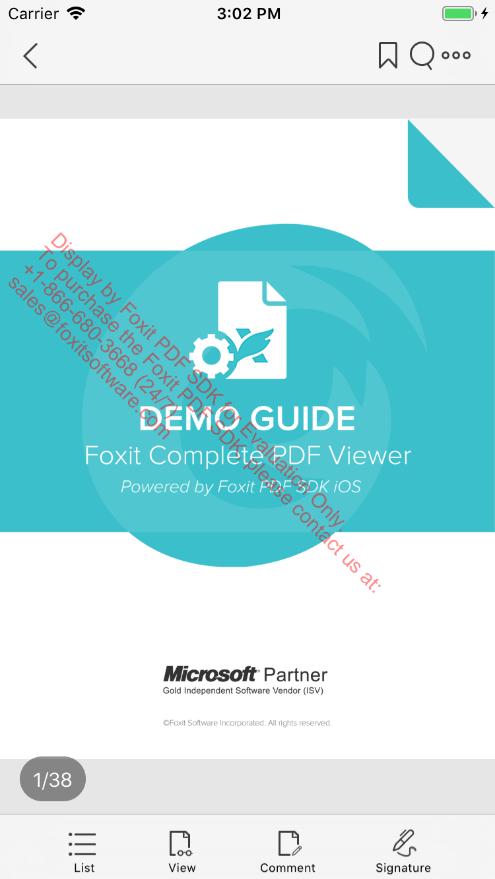
Figure 1-6
Customizing the UI
To customize the UI for your project, please go to our articles on the UIExtensions project:
How to Implement the UIExtensions project in Foxit PDF SDK for iOS
‘Customizing the UI with UIExtensions using Foxit PDF SDK for iOS.”
All the instructions on how to set up and customize your project will be provided there.