Developer Blog
How to implement Foxit PDF SDK for Web on AngularJS
With Foxit PDF SDK for Web 7.1, we have developed the interface to implement our web viewer into the AngularJS framework. This article will help you get your Foxit PDF SDK for Web project up and running with AngularJS.
System Requirements
NodeJS 10.9 or higher
Install AngularJS using Node
In your console window, enter the command below:
npm install -g @angular/cli

Figure 1-1
Create an AngularJS project
On your console window, enter the command below:
ng new projectName
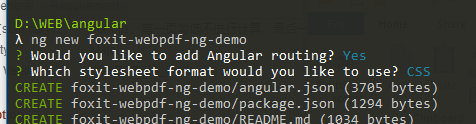
Figure 1-2
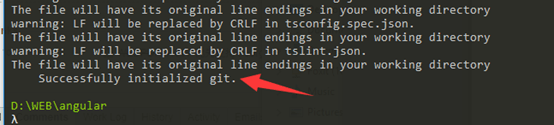
Figure 1-3
Implementing Foxit PDF SDK for Web in your AngularJS project
Foxit PDF SDK for Web Installation
Enter your AngularJS project location on your console window and run the command below:
npm install ngx-foxitpdfsdkforweb --save
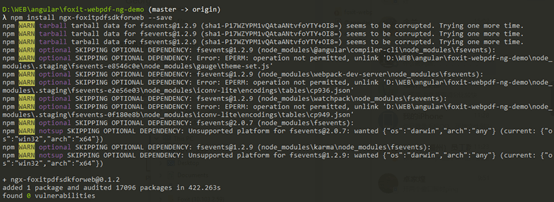
Figure 1-4
Configuration
angular.json
Modify the ‘angular.json’ file by adding the sample code below to the ‘assets’ element, as shown in the image:
{
"glob": "**/*",
"input": "./node_modules/ngx-foxitpdfsdkforweb/lib",
"output": "/node_modules/ngx-foxitpdfsdkforweb/lib"
}
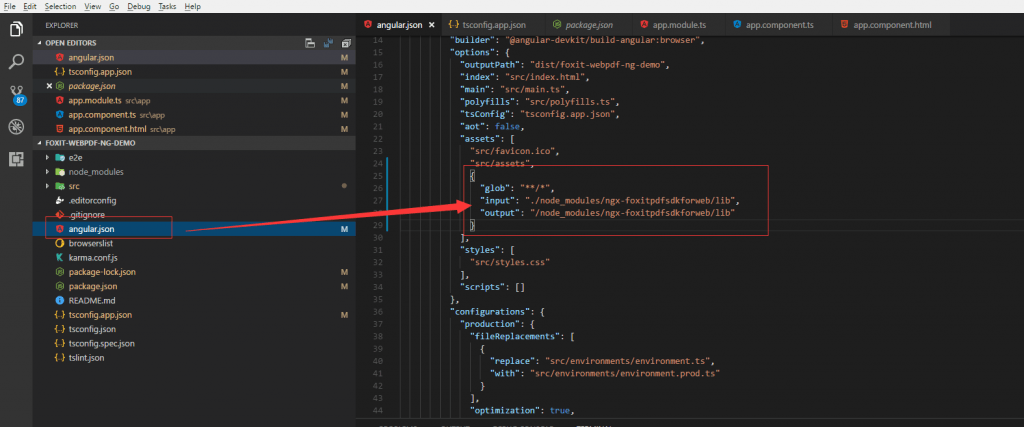
Figure 1-5
tsconfig.json
Modify the ‘tsconfig.json’ file by adding the sample code below to the ‘assets’ element, as shown in the image:
"node_modules / ngx-foxitpdfsdkforweb / foxitWebPDFComponent.ts"
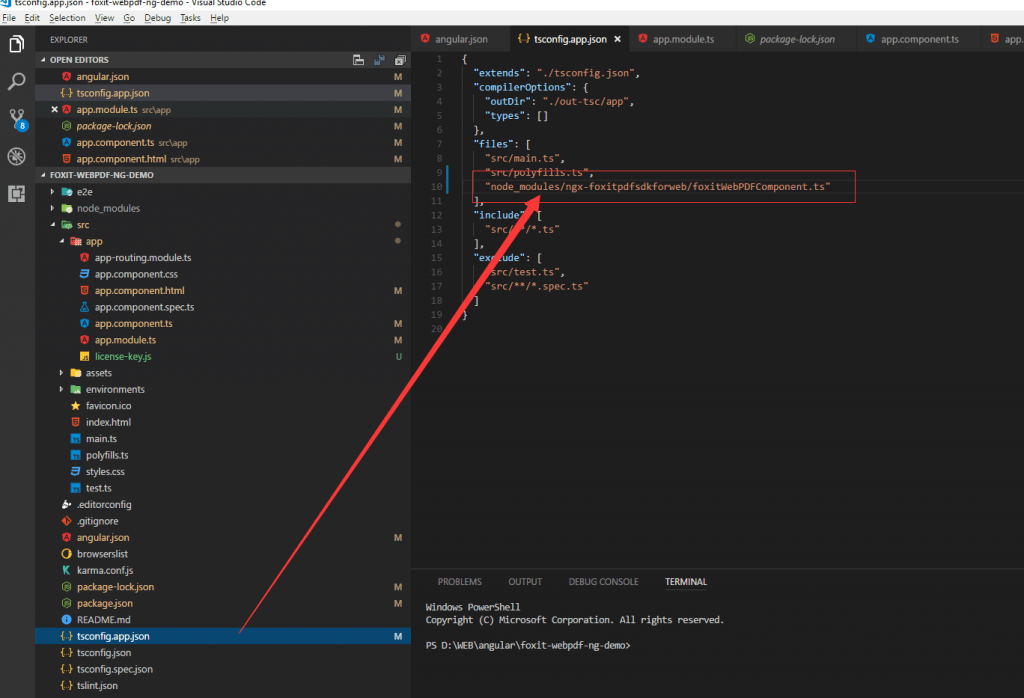
Figure 1-6
Adding ‘FoxitWebPDFComponent‘ to your app
Add the import statement ‘FoxitWebPDFComponent’ and ‘FoxitWebPDFComponent’ reference to the app.module.ts file as below:
import {FoxitWebPDFComponent} from 'ngx-foxitpdfsdkforweb';

@Module ({
  declarations: [
    ...
    FoxitWebPDFComponent,
  ],
  ...
})
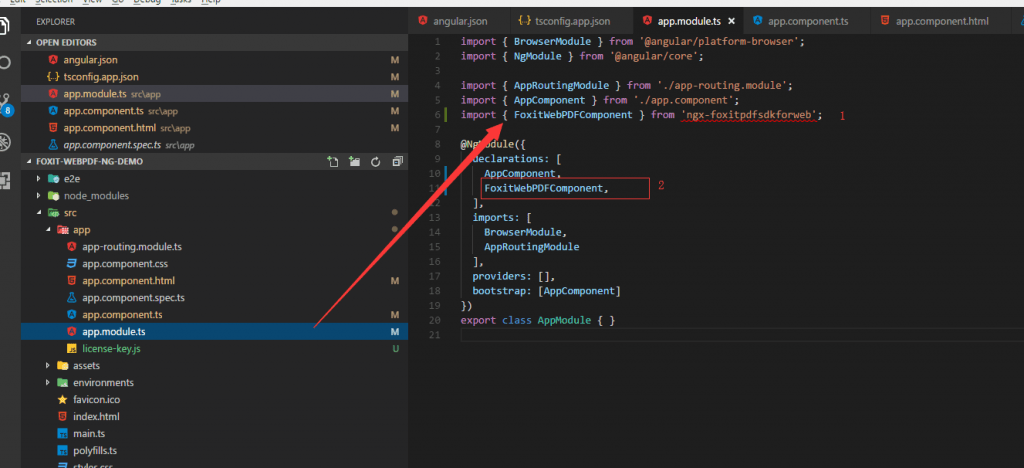
Figure 1-7
License Key
Add the license key code to the app.component.html file:
<foxit-webpdf #foxitWebPDF style="position: absolute;width:1200px;height:1000px;" licenseSN="{{licenseSN}}" licenseKey="{{licenseKey}}" ……" ></foxit-webpdf>
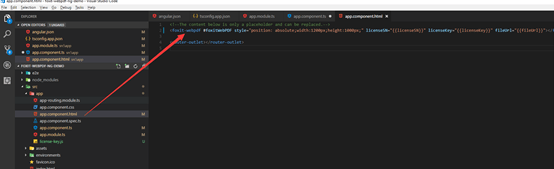
Figure 1-8
Now, import the license key file into the ‘app.component.ts’ file as shown below:
import { licenseSN, licenseKey} from './license-key';
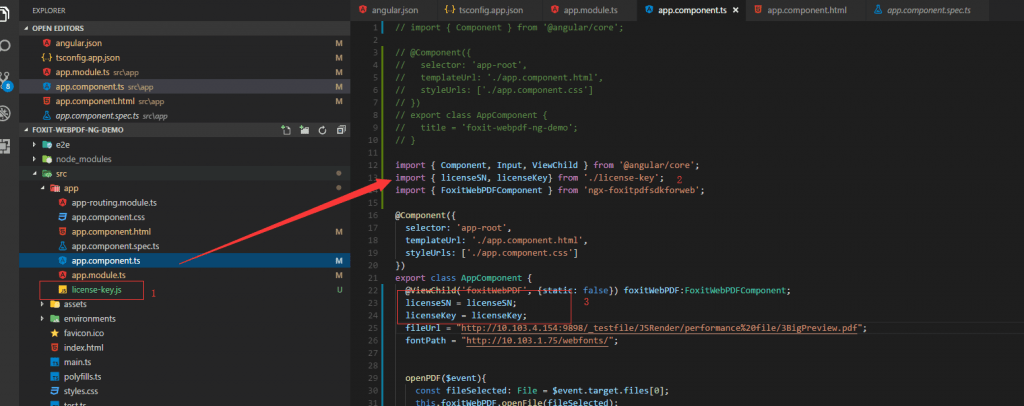
Figure 1-9
Run the project
Enter your AngularJS project location on your console window and run the command below:
npm install -g @angular/cli
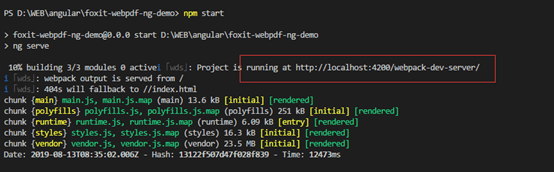
Figure 1-10
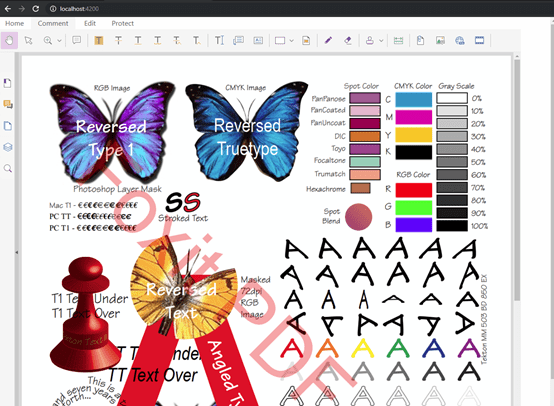
Figure 1-11