Developer Blog
How to run ReactJS with PDF SDK for Web
The guide below details 2 examples. One introduces how to quickly run the boilerplate sample for React.js inside Foxit PDF SDK for Web, and the other presents a way to integrate Foxit PDF SDK for Web into an existing React app created with WebPack and Babel.
Quickly run the built-in example for React.js
Foxit PDF SDK for Web provides a boilerplate project for React which was created with WebPack and Babel. This example can be found at `../integrations/` inside Foxit PDF SDK for Web package.
Overview of the project structure
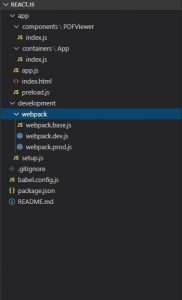
Key directory and files descriptions
File/Folder | Description |
—————————- | ——————————————————————————- |
App | Contains all JS and CSS files for the app. |
App / Components / PDFViewer | Contains the initialization plugins for Foxit PDF SDK for Web. |
App / Preload.js | This entry point used to preload SDK core assets |
App / App.js | The entry point for application. |
Development | Contains automated scripts for packaging in dev mode, application initialization and etc. |
Package.json | Lists dependencies, version build information ect. |
Prerequisites
Getting started
Enter `../integratons/react.js/` inside FoxitPDFSDK for Web, and execute:
```sh

npm run setup

```
This setup will implement the following:
`npm install` to install dependencies.
Copy `lib` folder from the root folder to the `../integratons/react.js/app/`, and auto rename it to `foxit-lib`.
Copy `..examples/license-key.js`to the `../integratons/react.js/app/`.
Running the example
On the shell, execute the following command to start your application:
```sh

npm start

```
Now you are ready to launch the app. Open your browser, navigate to `<http://127.0.0.1:9102/>` to load your example.
Building
```sh

npm run build

```
The production will be placed into `../integratons/react.js/dist`
Testing
```sh

cd ./dist && http-server -p 8080

```
Integrate Foxit PDF SDK for Web into an existing React.js project
Prerequisites
Webpack configuration
Let’s call the root folder of your existing project ReactJS and Foxit PDF SDK for Web as SDK.
1. Create and configure the following 3 files in the `ReactJS/development/webpacK`folder:
`webpack.base.js`
`webpack.dev.js`
`webpack.prod.js`
For the configuration details, refer to the corresponding files in `SDK/integrations/react.js/development/webpack/`. You can also directly duplicate the files to `ReactJS/development/webpacK`
2. Configure the npm script in package.json
```json

"script": {

"start": "webpack-dev-server --config development/webpack/webpack.dev.js",

"build": "webpack --config development/webpack/webpack.prod.js"

}

```
Adding dependencies and entry point files
1. In SDK, copy the `lib` and `../examples/license-key.js`to `ReactJS/app`, and change the lib name to `foxit-lib`. Besides, to correctly reference your fonts lib, you also need to duplicate the `external` folder inside SDK to `ReactJS/app/foxit-lib/assets`.
2. Create and configure the following files in ReactJS:
The [babel.config.js](https://www.npmjs.com/package/@babel/preset-react)
The `../app/components/PDFViewer/index.js`
The `../app/containers/App/index.js`
The `index.htm`,`app.js` and `preload.js` inside `../app/`
For the configuration details, refer to the corresponding files in SDK. You can also directly duplicate those files into the corresponding folders in ReactJS.
Running your application
```sh
npm run start

```
Now everything is set up. Open your browser, navigate to <http://127.0.0.1:9102/> to launch your application.