Back to Blog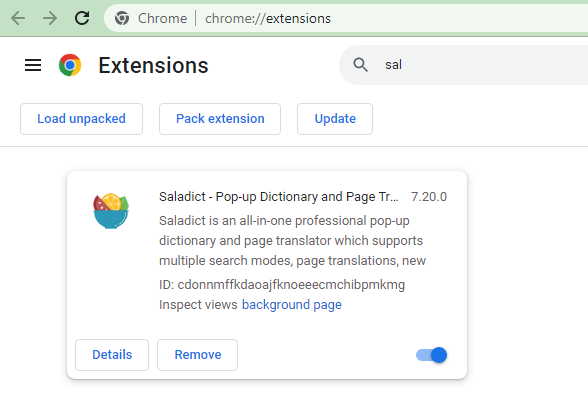
Developer Blog
How to Use the Select Text Event to Activate a Browser Translation Plugin
Foxit PDF SDK for Web
This article demonstrates how you can use the select text function with Foxit PDF SDK to activate a web browser translation plugin. In this example, we will use the Chrome Saladict plugin to implement a pop-up dictionary or page translator.
We use Foxit PDF SDK to do it and you can get a free 30 day trial here.
Platform: Web
Programming Language: JavaScript
License Key Requirement: Standard
SDK Version: Foxit PDF SDK 9.0
Step 1
The first step is to enable the Saladict plugin in the Chrome://extensions panel.
Step 2
Next, add the select text event listener in your code:
let div = document.createElement('div');
div.style.cssText += `
  opacity: 0;
  position: absolute;
  width: 0;
  height: 0;
  display: flex;
  justify-content: center;
  align-items: center;
`
document.body.append(div);
document.addEventListener('mousedown', () => {
    window.getSelection().removeAllRanges();
});
pdfui.addUIEventListener(PDFViewCtrl.Events.selectText, (data) => {
    if (!data || !data.text || !data.e || !data.e.srcEvent) {
        return;
    }
    const {text, e} = data;
    const event = e.srcEvent;
    div.style.cssText += `
    left: ${event.clientX}px;
    top: ${event.clientY}px;
    `;
    div.innerHTML = '';
    div.append(document.createTextNode(text));

    const mousedown = new MouseEvent('mousedown', {
        bubbles: true,
        clientX: event.clientX,
        clientY: event.clientY,
        relatedTarget: div
    });
    const pointerup = new PointerEvent('pointerup', {
        bubbles: true,
        clientX: event.clientX,
        clientY: event.clientY,
        relatedTarget: div
    });
    const mouseup = new PointerEvent('mouseup', {
        bubbles: true,
        clientX: event.clientX,
        clientY: event.clientY,
        relatedTarget: div
    });

    div.dispatchEvent(mousedown);

    const selection = window.getSelection();
    const range = document.createRange();
    range.selectNode(div);
    selection.addRange(range);

    div.dispatchEvent(mouseup);
    div.dispatchEvent(pointerup);
});
Step 3
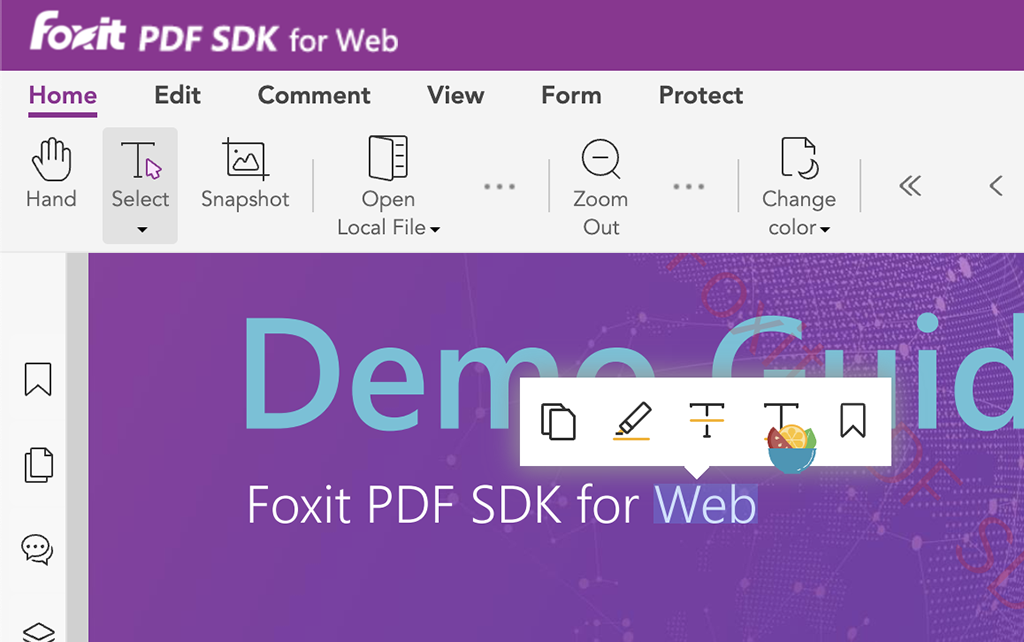
Finally, choose the Select Text tool, drag and select a range of text on the page, and the Saladict icon will appear on the selection.