
PDF editing modules
The PDF editing modules let users interactively edit PDF page content in the Viewer—for example text, images, paths, and gradient objects on a page, or adding new text, images, and shape objects.
Version notes
- Before version 10.0, Web SDK distinguished Light, Standard, and Full packages. Light and Standard packages used Std Edit; the Full package used Adv Edit by default.
- Starting with version 10.0, Web SDK no longer offers the Standard package.
How to choose
The SDK provides page object APIs, Std Edit, and Adv Edit. Pick the approach that matches your scenario.
| Need | Recommended approach | Notes |
|---|---|---|
| Read, add, or remove page objects via code | Page object APIs | Use PDFPage, GraphicsObject, TextObject, ImageObject, PathObject, and related APIs. See Page objects. |
| Let users perform basic object editing in the Viewer | Std Edit | Edit text, images, and path objects; add text, images, and paths; apply basic text styling. |
| Full editor experience | Adv Edit | Touchup text editing, object filtering, shape and gradient editing, text block join/split, find and replace, and other advanced interactions. |
| Search or locate text only, without editing | Text search | See Text search. |
UI examples
Std Edit ribbon

Adv Edit ribbon

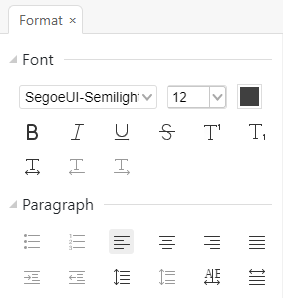
Adv Edit right panel
Common entry points
If you use the full default UI, you usually do not need to touch the components or add-ons below. They matter when you customize the toolbar, replace edit entry points, or trigger editing from code.
UIExtension components
Component tags belong in custom templates, ribbon groups, or fragments. For the full list, see Pre-configured components — graphic object editing add-on.
| Category | Components | Purpose |
|---|---|---|
| Adv Edit entry |
| Enter advanced editing tools to edit page objects or Touchup text. |
| Adv Edit helpers |
| Text block join, split, link, and find/replace entry points. |
| Adv Edit new objects |
| Add text, image, and shape objects. |
| Std Edit entry |
| Basic object editing plus add image, text, and path; context menus rely on edit-graphics components. |
NOTE
- To place built-in editing components in templates, the ribbon, or context menus, see Pre-configured components — graphic object editing add-on.
- To build custom edit buttons that reuse SDK click logic, see Complete viewer — UIExtension add-on controllers.
Programming APIs
Add-on APIs are suited to entering edit mode from code, running find/replace, or setting edit tool styles.
| Category | APIs | Purpose |
|---|---|---|
| Adv Edit add-on API |
| Control Adv Edit page object editing, Touchup editing, and tool styles. Requires the Adv Edit module and license. |
| Adv Edit find/replace add-on API |
| Find and replace text on PDF pages; part of advanced editing. |
| Std Edit add-on API |
| Std Edit path and text object editing; graphic object context menus come from edit-graphics. |
| Core page object APIs |
| Read and write page content objects without the edit UI; see Page objects. |
Switching Adv Edit to Std Edit
The full UI shows Adv Edit entry points by default. If you do not have Adv Edit licensing, or you only want Std Edit basic page object editing, replace the relevant components on the Edit tab.
Prefer fragments for layout replacement at init time; use the Component API for runtime changes.
Method 1: Use the fragments parameter
When initializing PDFUI, replace Adv Edit components via fragments:
javascript
fragments: [
    {
        target: 'adv-edit-tab-group-mode',
        action: UIExtension.UIConsts.FRAGMENT_ACTION.REPLACE,
        template: `
            <group name="edit-tab-group-mode" retain-count="3">
                <edit-pageobjects:edit-all-objects-button @async></edit-pageobjects:edit-all-objects-button>
                <add-image-ribbon-button></add-image-ribbon-button>
                <edit-text-object:add-text-ribbon-button @async></edit-text-object:add-text-ribbon-button>
                <edit-pageobjects:path-objects-ribbon-dropdown @async></edit-pageobjects:path-objects-ribbon-dropdown>
            </group>
            `
    },
    {
        target: 'edit-tab-group-editor',
        action: UIExtension.UIConsts.FRAGMENT_ACTION.REPLACE,
        template: `
            <group name="edit-tab-group-font" retain-count="5" @require-modules="edit-text-object">
                <edit-text-object:text-bold-style-ribbon-button></edit-text-object:text-bold-style-ribbon-button>
                <edit-text-object:text-italic-style-ribbon-button></edit-text-object:text-italic-style-ribbon-button>
                <edit-text-object:font-color-picker></edit-text-object:font-color-picker>
                <edit-text-object:font-style-dropdown></edit-text-object:font-style-dropdown>
            </group>
            `
    }
]
NOTE
For more on fragments, see UI Fragments.
Method 2: Use the Component API
javascript
// Get the advEditTabGroupMode component for Adv Edit on the Edit tab
const advEditTabGroupMode = await pdfui.getComponentByName("adv-edit-tab-group-mode");
// Remove advEditTabGroupMode
advEditTabGroupMode.remove();
// Get the advEditTabGroupEditor component for Adv Edit on the Edit tab
const advEditTabGroupEditor = await pdfui.getComponentByName("edit-tab-group-editor");
// Remove advEditTabGroupEditor
advEditTabGroupEditor.remove();
// Get editTabGroupHand, the first hand-tool group on the Edit tab
const editTabGroupHand = await pdfui.getComponentByName("edit-tab-group-hand");
// Insert Std Edit groups after editTabGroupHand
editTabGroupHand.after(`
    <group name="edit-tab-group-font" retain-count="5">
        <edit-text-object:text-bold-style-ribbon-button></edit-text-object:text-bold-style-ribbon-button>
        <edit-text-object:text-italic-style-ribbon-button></edit-text-object:text-italic-style-ribbon-button>
        <edit-text-object:font-color-picker></edit-text-object:font-color-picker>
        <edit-text-object:font-style-dropdown></edit-text-object:font-style-dropdown>
    </group>
`)
editTabGroupHand.after(`
    <group name="edit-tab-group-mode" retain-count="3">
        <edit-pageobjects:edit-all-objects-button @async></edit-pageobjects:edit-all-objects-button>
        <add-image-ribbon-button></add-image-ribbon-button>
        <edit-text-object:add-text-ribbon-button @async></edit-text-object:add-text-ribbon-button>
        <edit-pageobjects:path-objects-ribbon-dropdown @async></edit-pageobjects:path-objects-ribbon-dropdown>
    </group>
`)
Saving edits
The editing modules change PDF page content. To download or upload the modified PDF after editing, export the file from the current PDFDoc.
javascript
const pdfDoc = pdfViewer.getCurrentPDFDoc();
const file = await pdfDoc.getFile({
    fileName: 'edited.pdf'
});
Notes
- Editing page content usually requires document modification permission, as constrained by PDF permissions and your UI permission rules.
- The editing modules target interactive editing; for batch page object work, use the APIs in Page objects.
- After changing PDF content, export or save the file so changes are written to the final PDF.
- When customizing the edit toolbar, prefer fragments or the Component API over manipulating internal DOM directly.